
Tile connect · casual puzzle
Play Sichuan with friends: lobbies and invite links
By Playship Studios Updated
An official play guide from the developer of Play Sichuan.
To play a Sichuan puzzle with a friend, create a lobby from Battle Mode. For a one-on-one match, set Max players to 2 and share the invite link.
Lobbies support 2 to 4 players. Choose Invite only if you want just your invited friends to join. Battle requires an internet connection.
Create a lobby for two friends
Open Battle Mode from the home screen, then select Create and invite on the Battle lobby card. The next screen lets you set the player count and visibility. Set Max players to 2 for a 1v1 battle.
A Public lobby can also be joined by other people from the public list. Select Invite only to keep the game to the friends you invite.
- Open Battle Mode from the home screen.
- Choose Create and invite on the Battle lobby card.
- Set Max players to 2 and Visibility to Invite only.
- Select Create and invite below the settings to create the lobby.
Fill the seats and have everyone select Ready
Both the host and the other players need to select Ready in the lobby. The match starts automatically when all seats are filled and everyone is ready. If only two of you are present but Max players is 3 or 4, the host can change the size or invite the remaining friends.
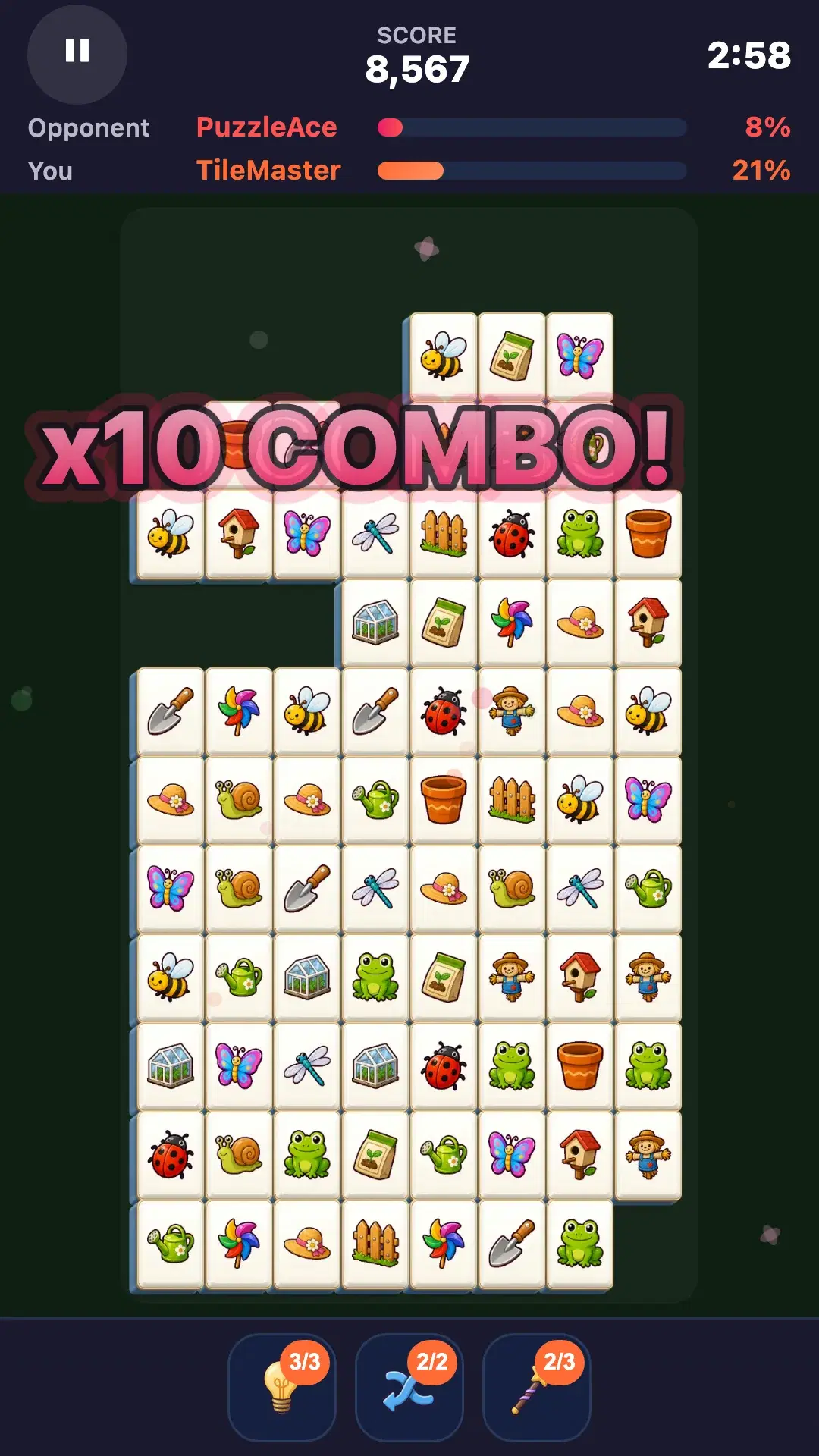
In a 1v1 battle, you race to clear the same board. Keep an eye on your opponent's progress while concentrating on your own next valid pair.
If your screen shows an Invite a friend card
Screens with an Invite a friend card and Create room / Enter code buttons use the older 1v1 invite room. The host selects Create room, then uses Share on Android or iOS, or Invite via Toss inside Apps in Toss.
This older invite room also accepts a six-character code made of letters and numbers. The friend selects Enter code in Battle Mode, enters the code, and selects Join. The game starts automatically once the friend connects, so the host should stay on the waiting screen.
If the invite does not open or the game will not start
If you entered only a code for an invite-only lobby, ask for the full invite link and open it. If the room has already started or closed, create a new room and share its new link. For connection errors, both players should check their internet connection and game updates.
A lobby closes after 10 minutes without a state change. The host can use Extend 10 minutes while waiting. If everyone has joined but the game will not start, check Max players and each player's Ready status first.
Frequently asked questions
Can I play Sichuan with just one friend?
Yes. Create a lobby in Battle Mode, set Max players to 2, and choose Invite only. Send the full invite link and have both players select Ready to start.
Can I send just the room code?
An invite-only lobby requires the full invite link. Public lobbies and older 1v1 invite rooms can use code entry, but for an invite-only game with friends, send the complete link generated by Invite friends.
Why does the game not start when we have both joined?
A lobby starts when all configured seats are filled and every player is ready. For two players, check that Max players is 2 and that both the host and the friend selected Ready.
Can I battle a friend without internet access?
Battle requires an internet connection. Both players need to stay connected while creating or joining a lobby and during the game.